
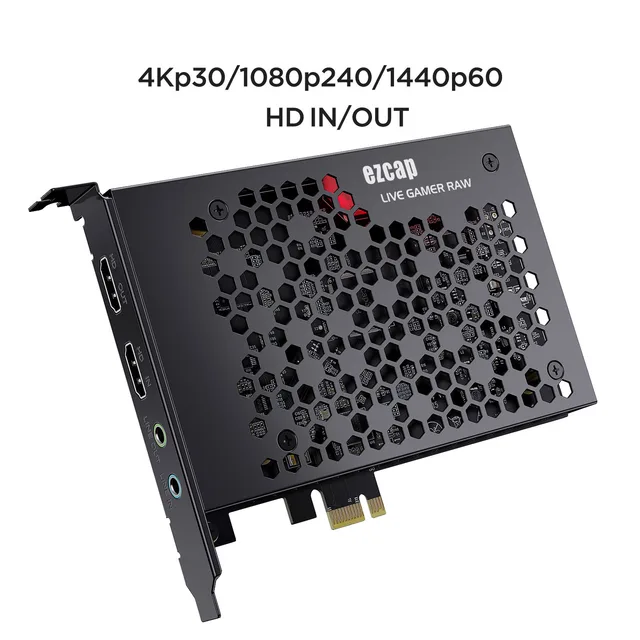
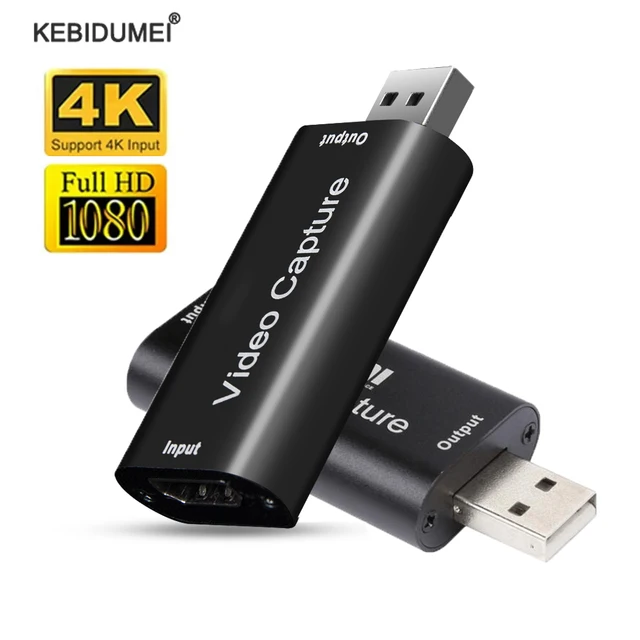

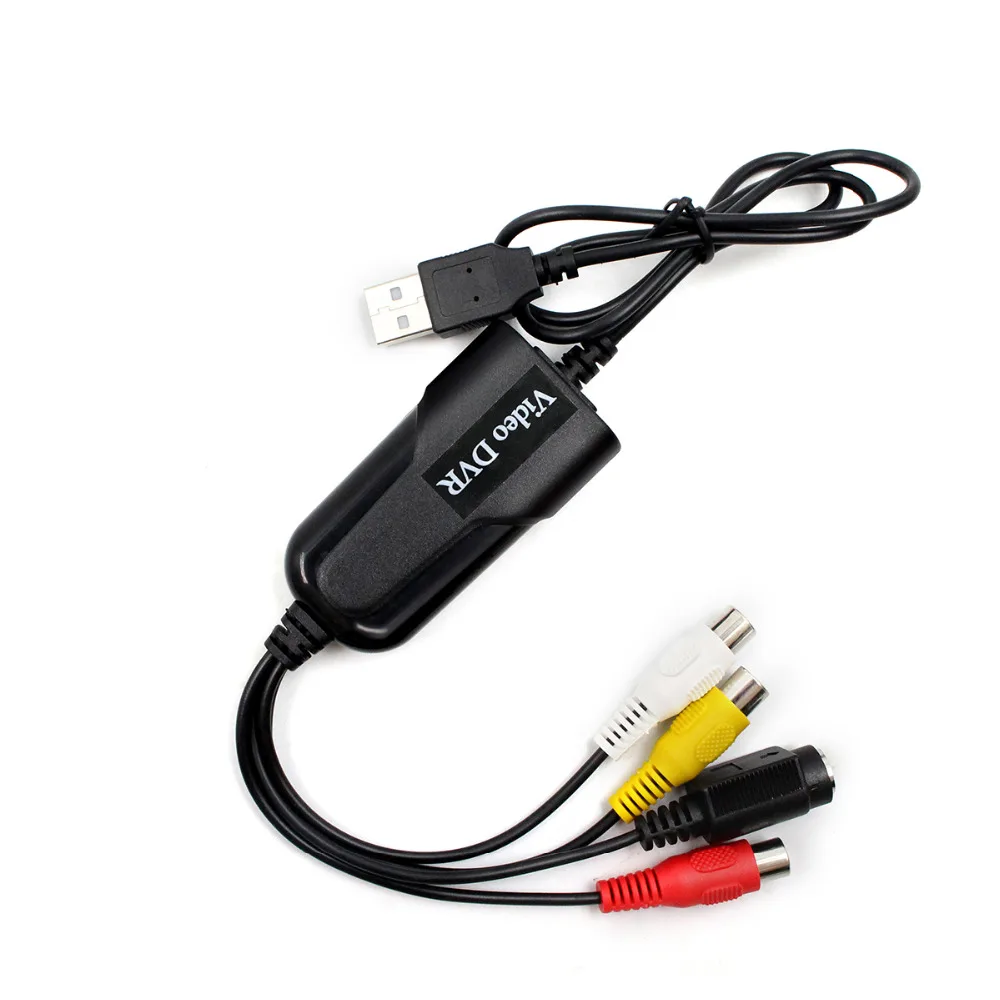
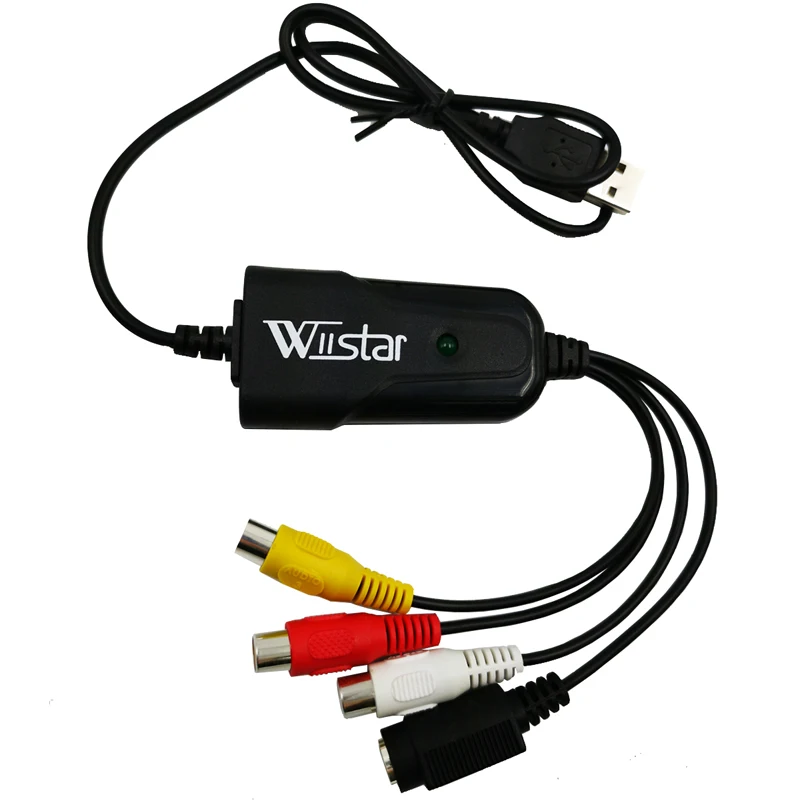
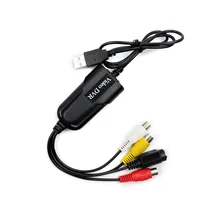
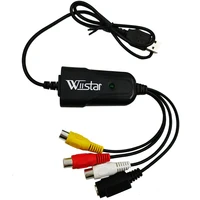
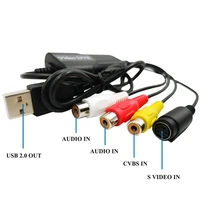
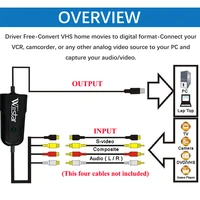
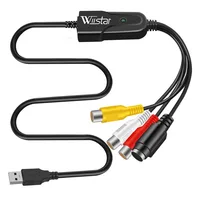

New Easy to cap USB 2.0 Audio Video Capture Card Adapter VHS to DVD Video Capture for Windows 10/8/7/XP Capture Video
Description :
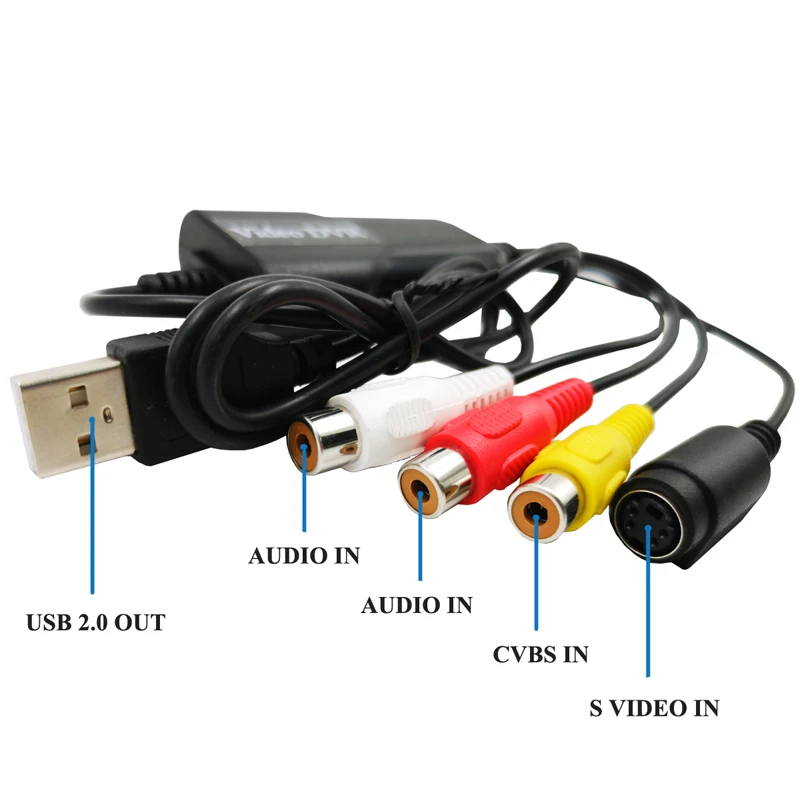
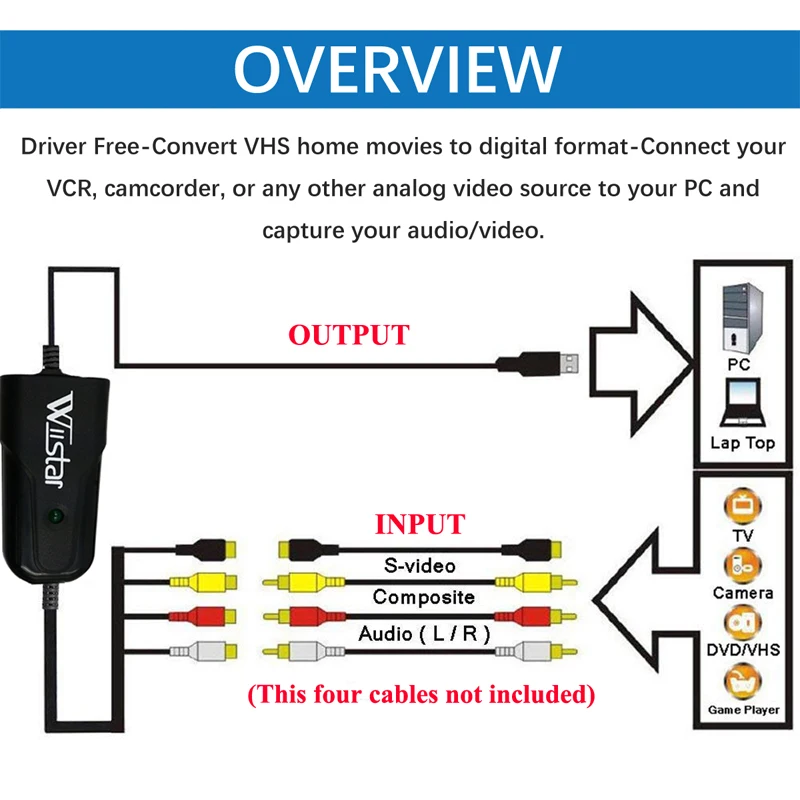
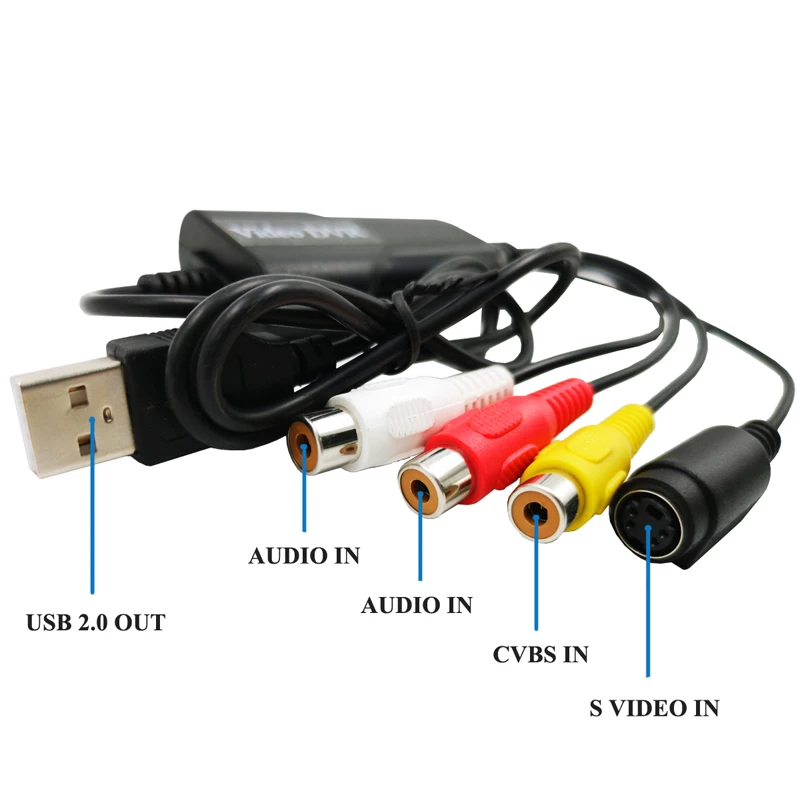
This is USB Video Audio Card, which can capture high quality video and audio files direct by USB 2.0 interface without sound card.
High-speed rendering and real-time performance mean less time waiting and more time creating. By the way, you can also use it to create many special effects and clip video files, etc.
Capture Video & Audio via USB 2.0 interface directly (capture audio without the sound card)
Support Brightness, Contrast, Hue, and Saturation control.
Support all formats: record in DVD+/-R/RW, DVD+/-VR, and DVD-Video.
Useful for internet conference, net meeting.
USB interface, needn’t other power.
System Requirements
USB: Compliant USB2.0 free port.
Attention:This video capture does not support SECAM and too old video format.
Characteristics:
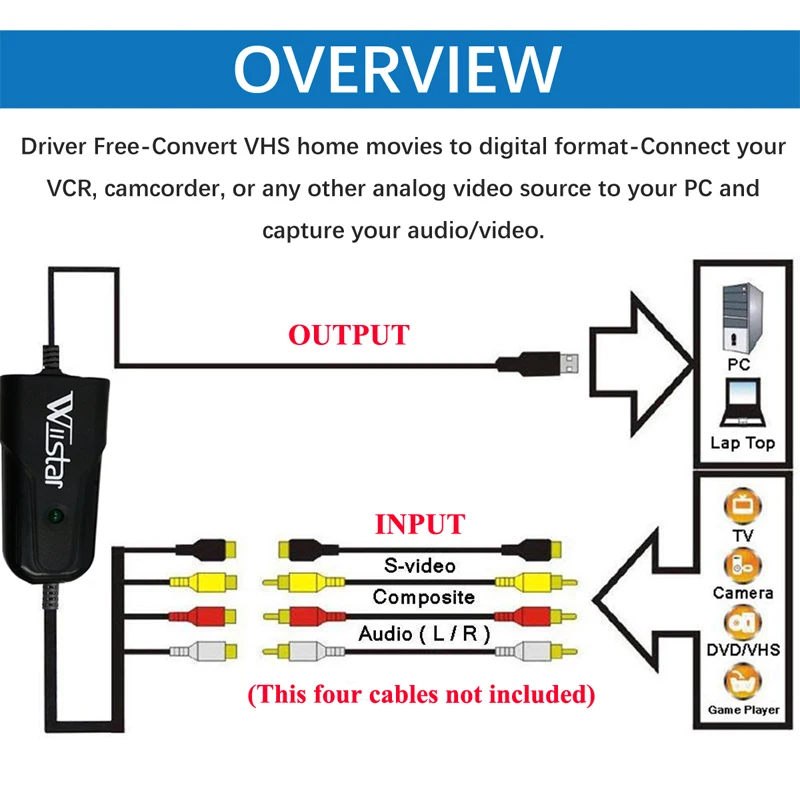
Driver Free-Does not to install CD driver files. Easy to Capture from VHS Tapes,Hi8,Mini DV Camcorder to your PC. Works with Windows computers without installing any drivers.
Digital photos – Create photos from the Videos – Compatible with: PAL / NTSC.
Plug&Play, no power adapter required.
Small, lightweight design offers convenient portability for on-the-go applications.
Package:(Depends on Your Choose.)
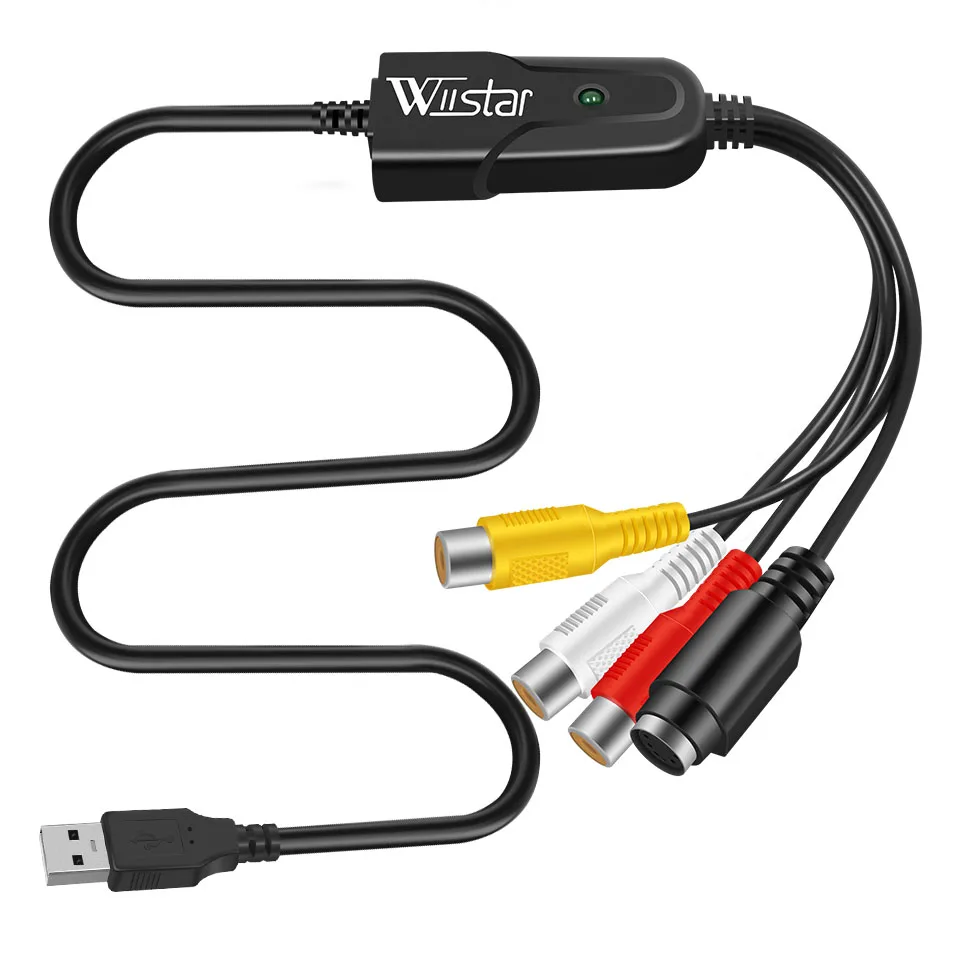
1pcs x CAPTURE USB 2.0 Video Adapter
Note:
Driver Free not means this item plug&play,You still need some professional video capture softwares to capture video, likePotPlayerorAMCap.
Example: Potplayer(windows 7)
Install Potplayer software on the computer.
Double click the Potplayer icon to open the software.
Click on “Potplayer Open Device Settings…” Or use the shortcut “Alt + D” to open the device settings window.
① Select “Analog TV”;
② Select “USB device” under the Video Device Box;
③ Select HDMI under the Input Box;





Reviews
Clear filtersThere are no reviews yet.