

Product Specifications
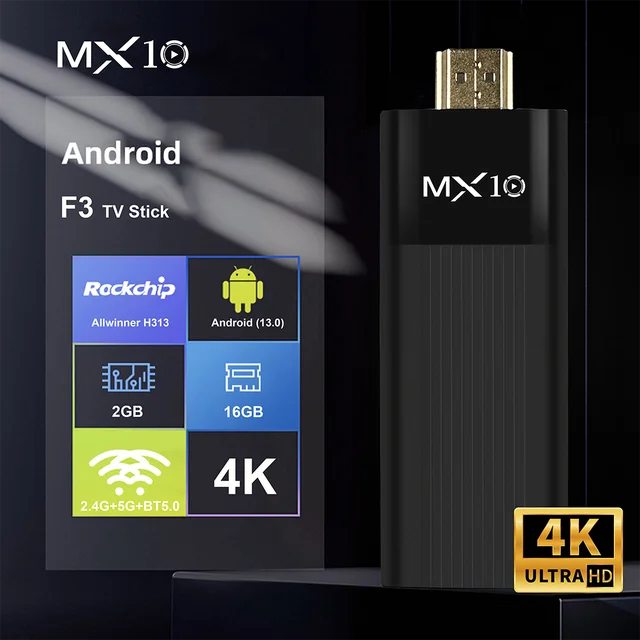
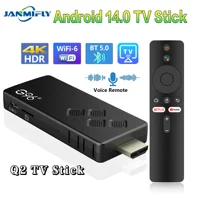
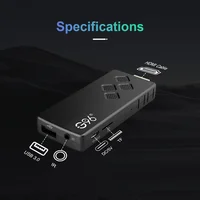
Processor: Allwinner H313 Quadcore cortex-A53
Graphics processor:Mali-G31 MP2
Running memory: 2GB
Storage space: 8GB/16GB eMMC
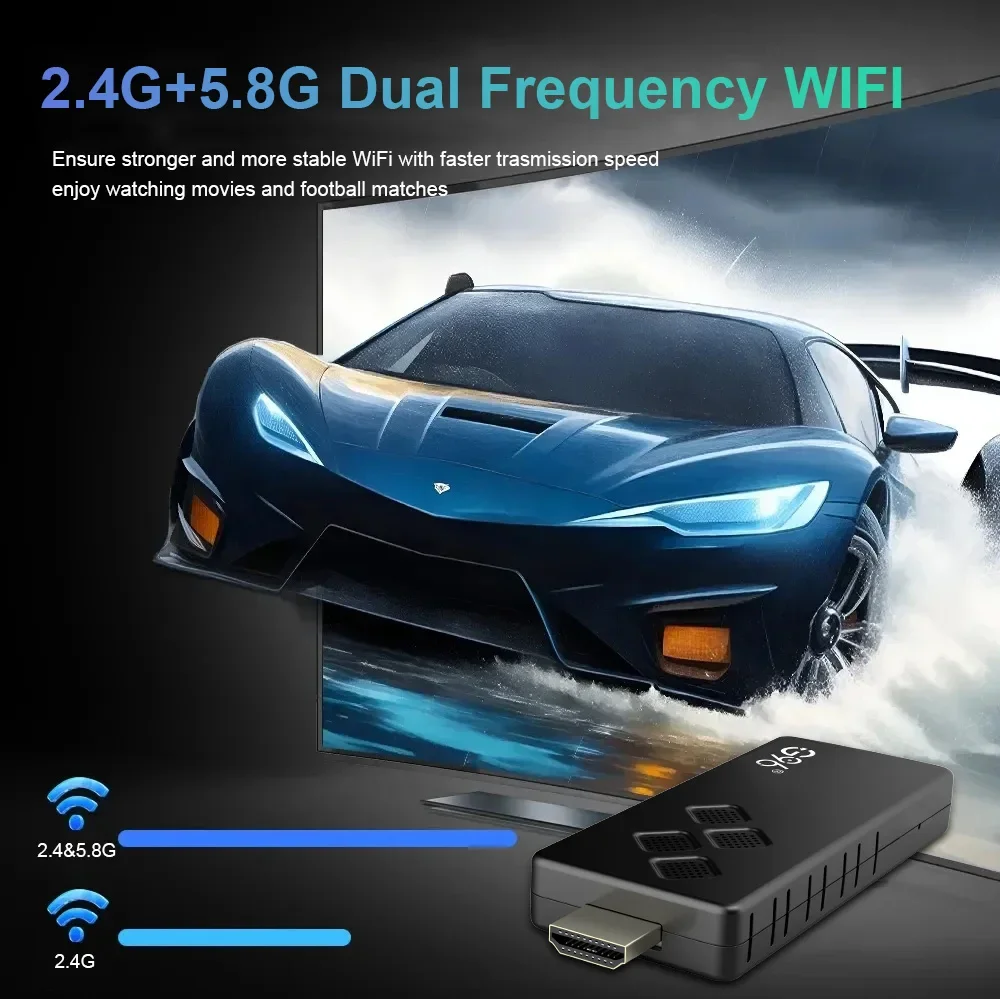
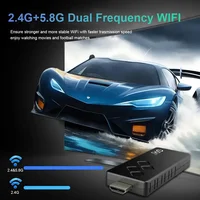
WiFi: 2.4G+5G WIFI 6
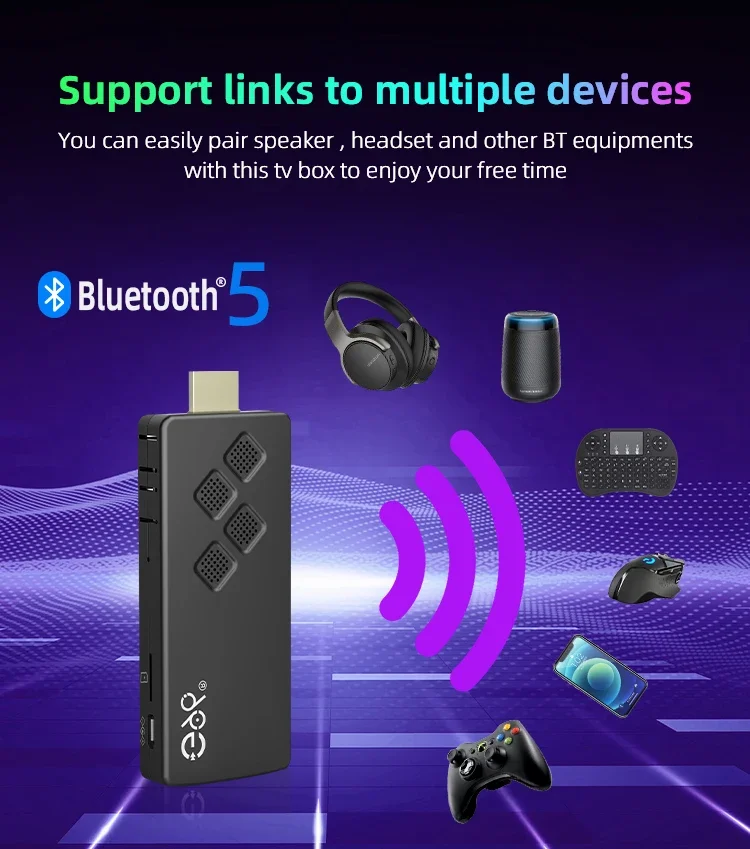
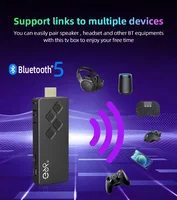
Bluetooth: BT5.0
Operating system: Android 14.0
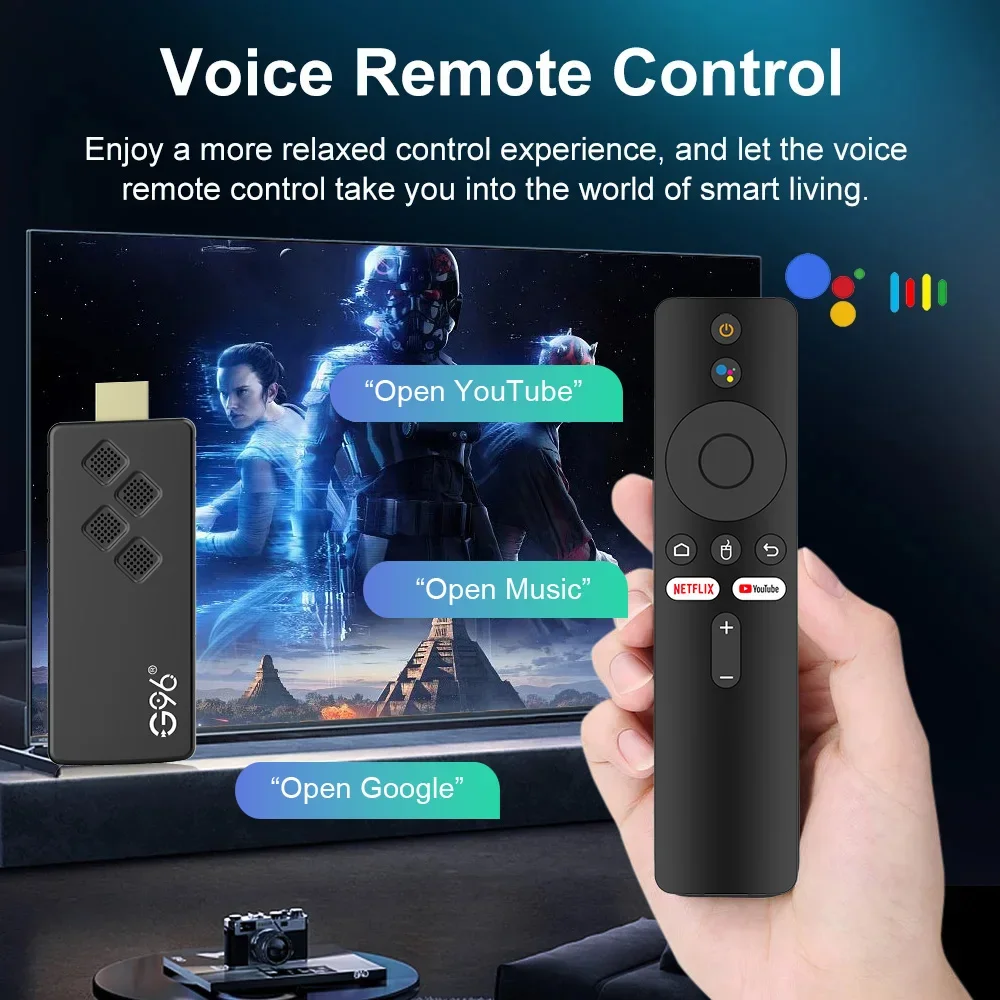
Remote control: Voice/Infrared remote control
Product Features
✅Powerful Performance, Smooth Operation: Equipped with H313 quad-core Cortex-A53 processor, up to 1.5GHz, built-in Mali-G31 MP2 GPU, supports hardware 3D graphics acceleration, easily copes with the needs of high-definition video playback, games, etc.
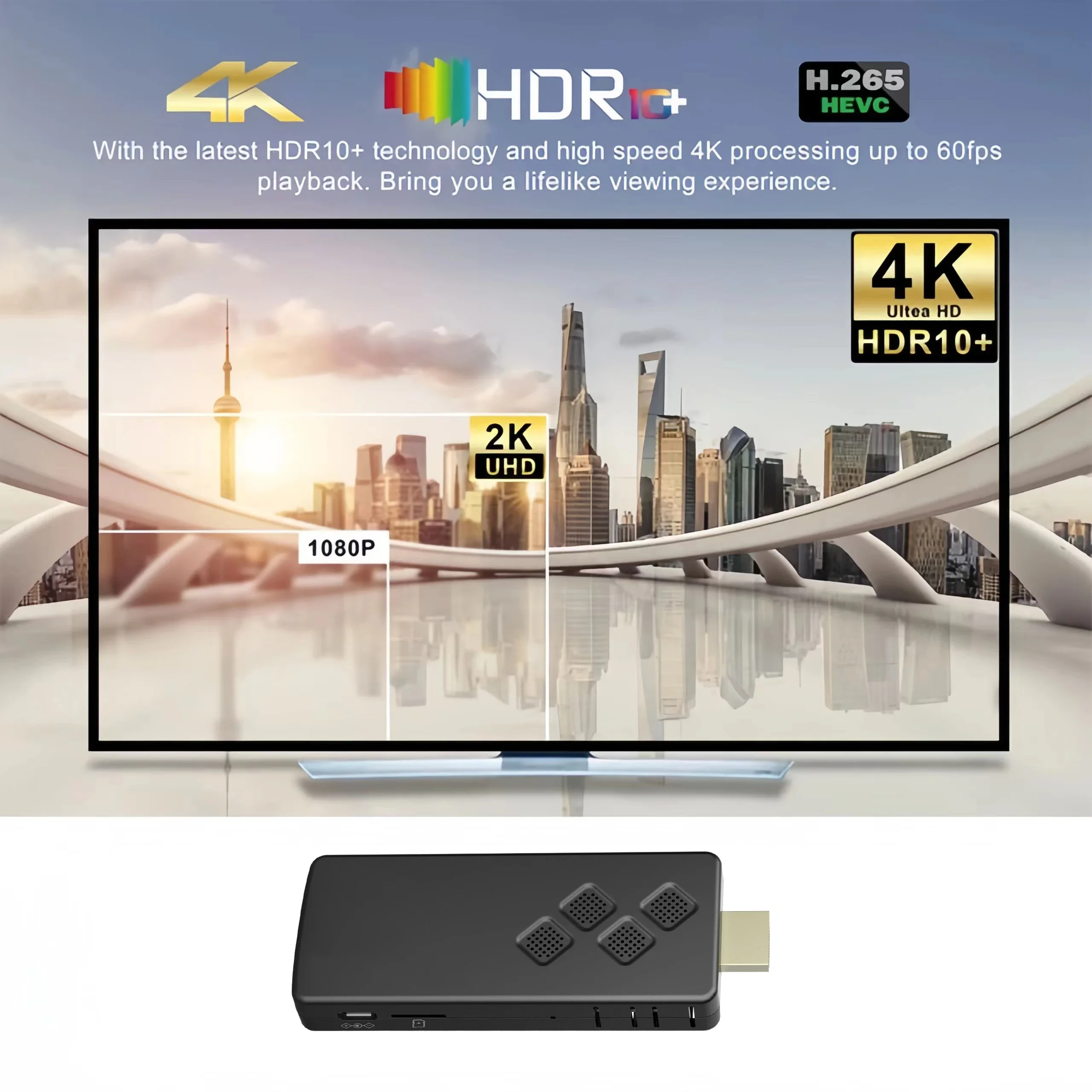
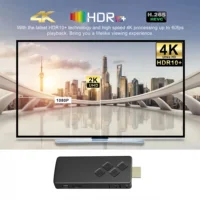
✅High-Definition Picture Quality, Delicate and Realistic: Supports 4K@60fps high-definition video decoding, equipped with HDR technology, presents delicate and realistic picture quality effects, allowing you to enjoy cinema-level viewing experience at home
✅Rich Functions, Multi-faceted Applications: Runs on the Android TV 14.0 operating system, compatible with a large number of applications and games, meeting your various entertainment needs. Supports 2.4G/5G dual-band WiFi, stable network connection, supports Bluetooth 5.0, can connect peripherals.
Package Include
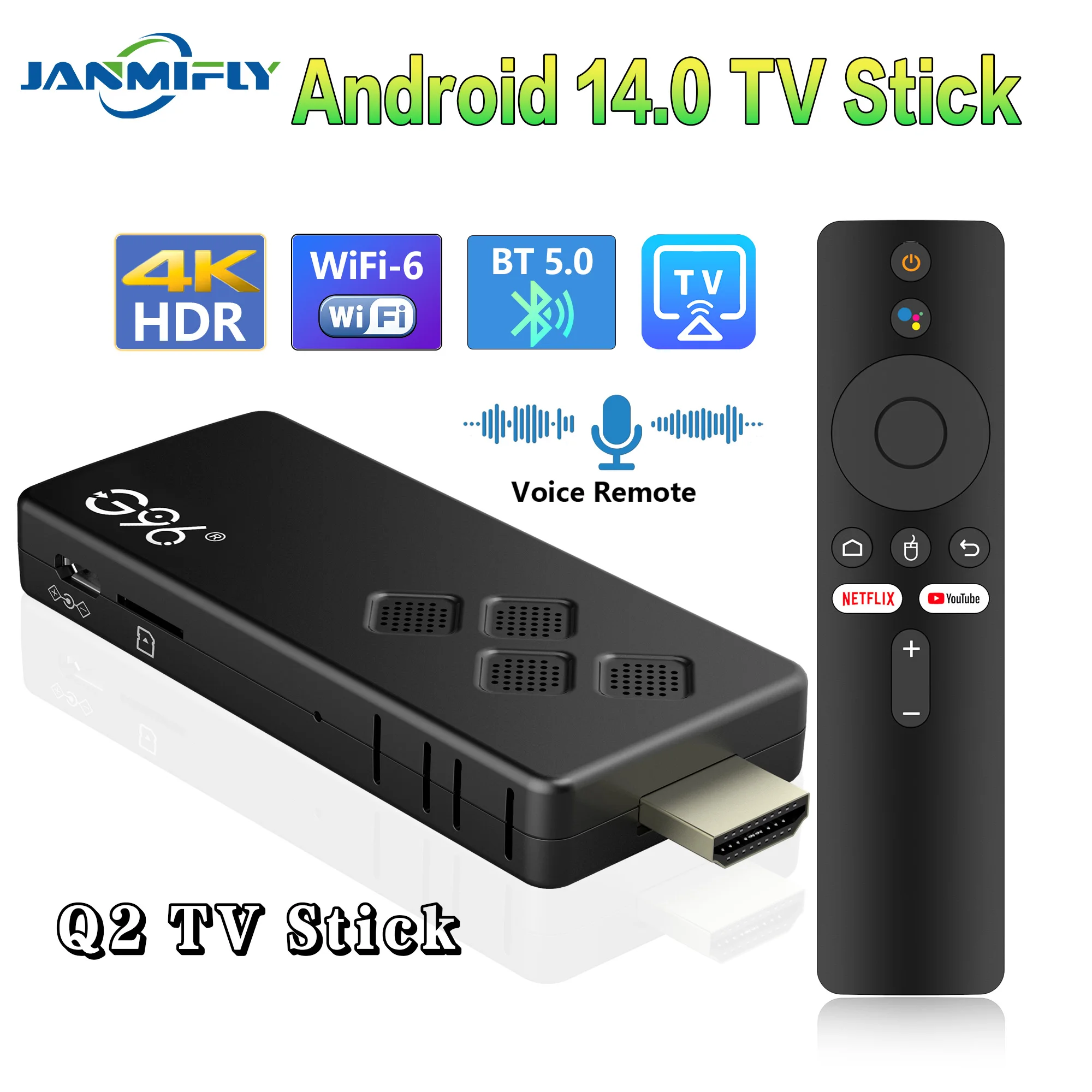
1* Q2 TV stick
1*Voice/Infrared Remote control
1* HD Cable
1* USB power cord
1*IR cable
1*User Manual
Support 4K Video Decoding
Incredibly clear and smooth playback of videos and images.
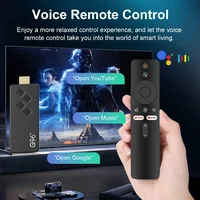
Smarter voice control
1.Click the voice button to display the pairing prompt interface.
2. Press and hold the button according to the prompt interface until the TV screen. automatically exits the pairing prompt interface before releasing the button. At this time, the Google Assistant is paired successfully.
3. Click the voice button. At this time, a voice bar prompt will appear on the screen below the TV.Then long press the voice button and say what you want to say to the remote control. You can release your hand until the TV displays the command you want to say. After releasing your hand the Google Assistant will execute your command.
HDR 10 High Dynamic Range
Make the picture display more vivid and beautiful.
Android 14.0
Android multimedia box, you can download various video and music apps online, enjoy audiovisual experiences.
WiFi 6
Multi Screen sharing
Easily share the small screen to the large screen.
You can play games and watch movies on the big screen.
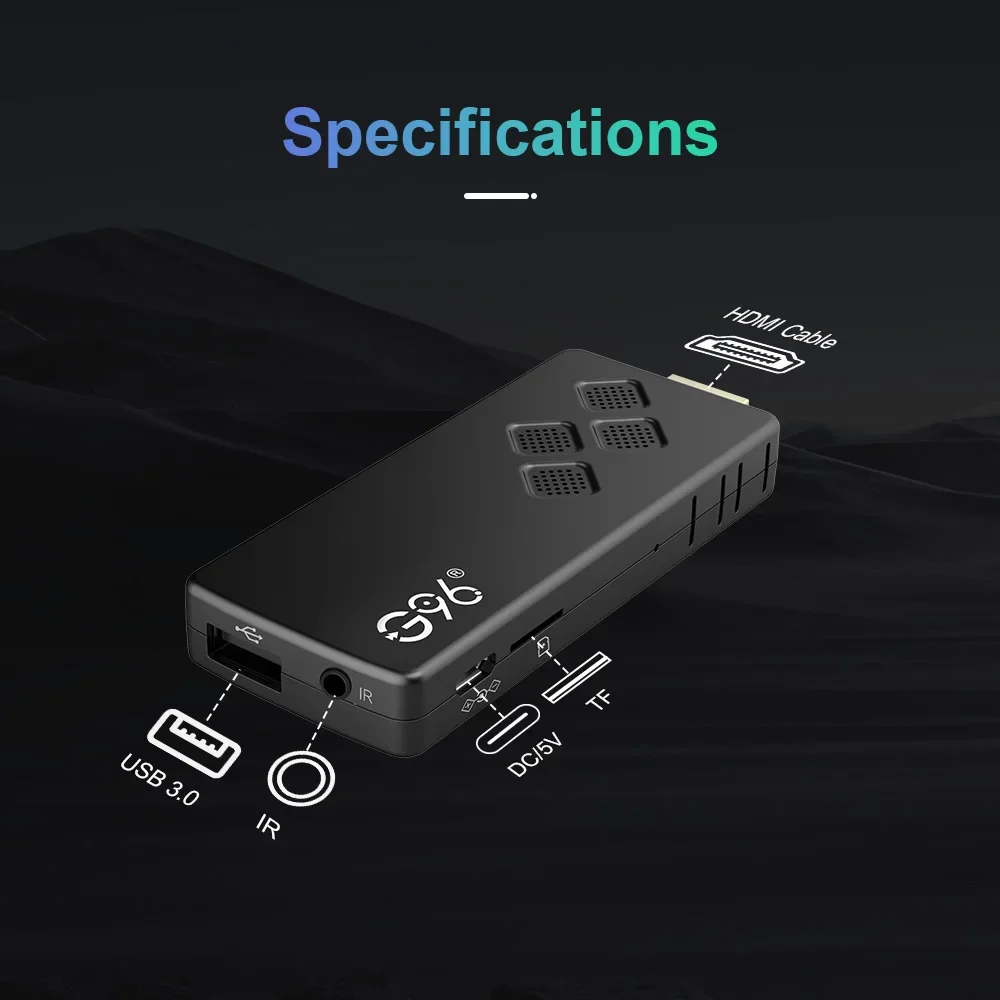
INTERFACE INTRODUCTION
Voice Remote Control
Infrared Remote Control
How to Install a TV Stick?
Step 1. Connect the Tv Stick to the Tv through an HD extension cable, or directly connect the TV HD
Step 2. Connect the lR extension cable to Tv Stick, and paste the lR receiver onto the front end of the TV.
Step 3. Power supply through Type-C cable, from TV USB or 5V2A power adapter
1. After connecting to WiFi, open the APP, find the black screen Netflix software, and click to open
2. After clicking to open Netflix, the login interface will appear. Click the mouse switch button on the remote control to switch the remote control to mouse mode, and click the login button of the software
3. Click the mouse button again to switch the remote control to remote control mode, enter the account and password to log in
4. Use the mouse mode of the remote control to click the video to play
If the signal receiving light of the TV stick flashes, the TV screen turns on in a loop
This is because the power you connected to the machine is less than 5V, 2A, please use a 5V, 2A power adapter to power the machine
The voice remote control Bluetooth pairing interface appears on the TV stick, and the remote control does not respond
1. If you purchased an infrared remote control combination, the pairing interface will appear. Just press the return button on the remote control to exit the pairing interface. After exiting, you can use the remote control normally
2. If you purchased a voice remote control combination, the pairing interface will appear. You need to perform Bluetooth pairing according to the interface prompts: press and hold the remote control button at the same time. When the pairing interface automatically exits, it means that the pairing is successful. Release the button after the pairing is successful.
The remote control cannot navigate on some applications
For most Android TV sticks, using the remote control to navigate on some applications is a common problem because these applications are mainly provided for tablets and mobile phones with touch screen settings or mice. You can connect a mouse or wireless keyboard to control it, or click the mouse button on the remote control to switch the remote control mode to mouse mode
If your TV stick needs to be restarted after using it for a period of time
It may be that some applications you installed are incompatible, or some data is damaged. It is recommended that you perform “factory reset” in the settings.

Reviews
Clear filtersThere are no reviews yet.