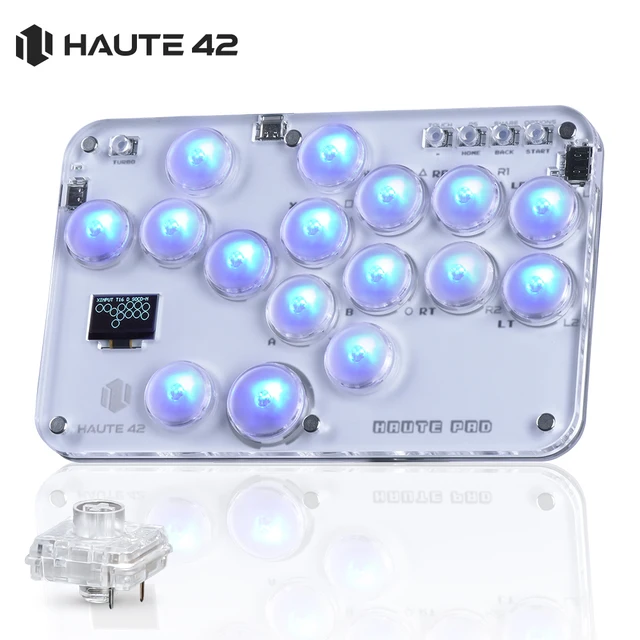
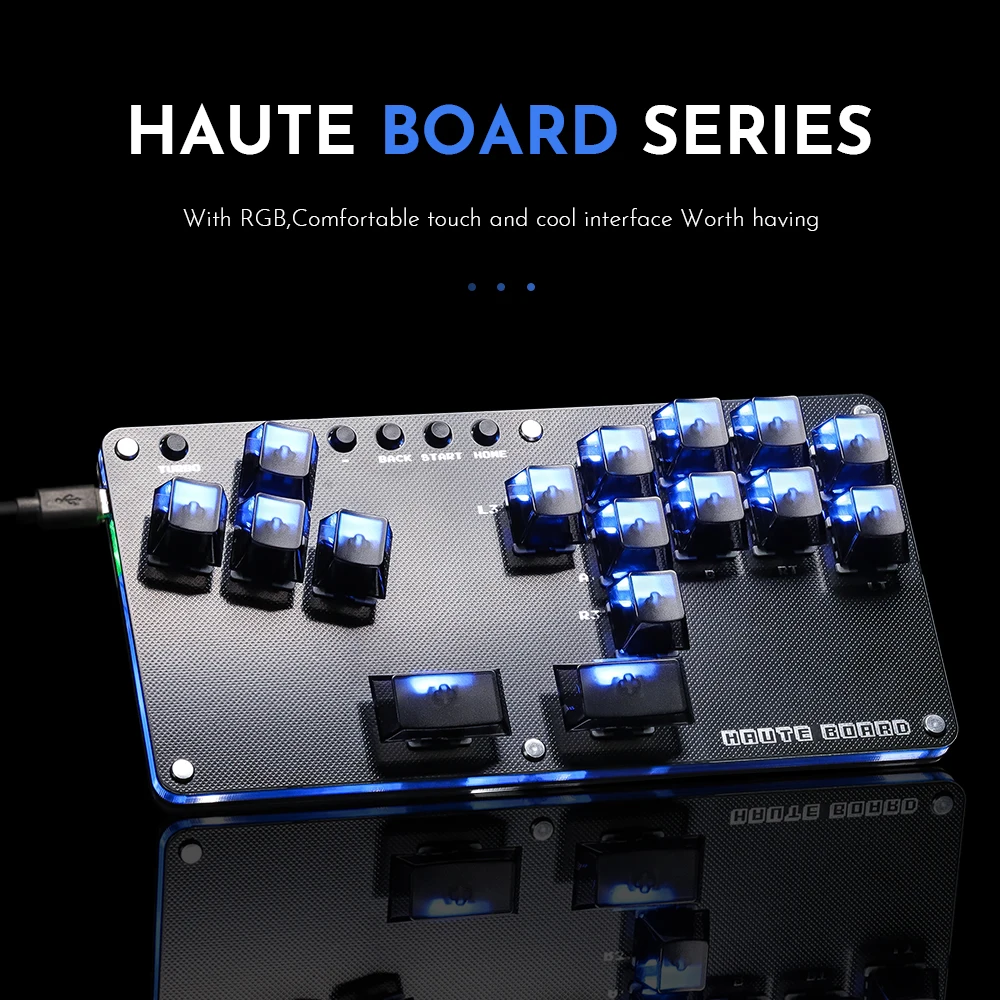
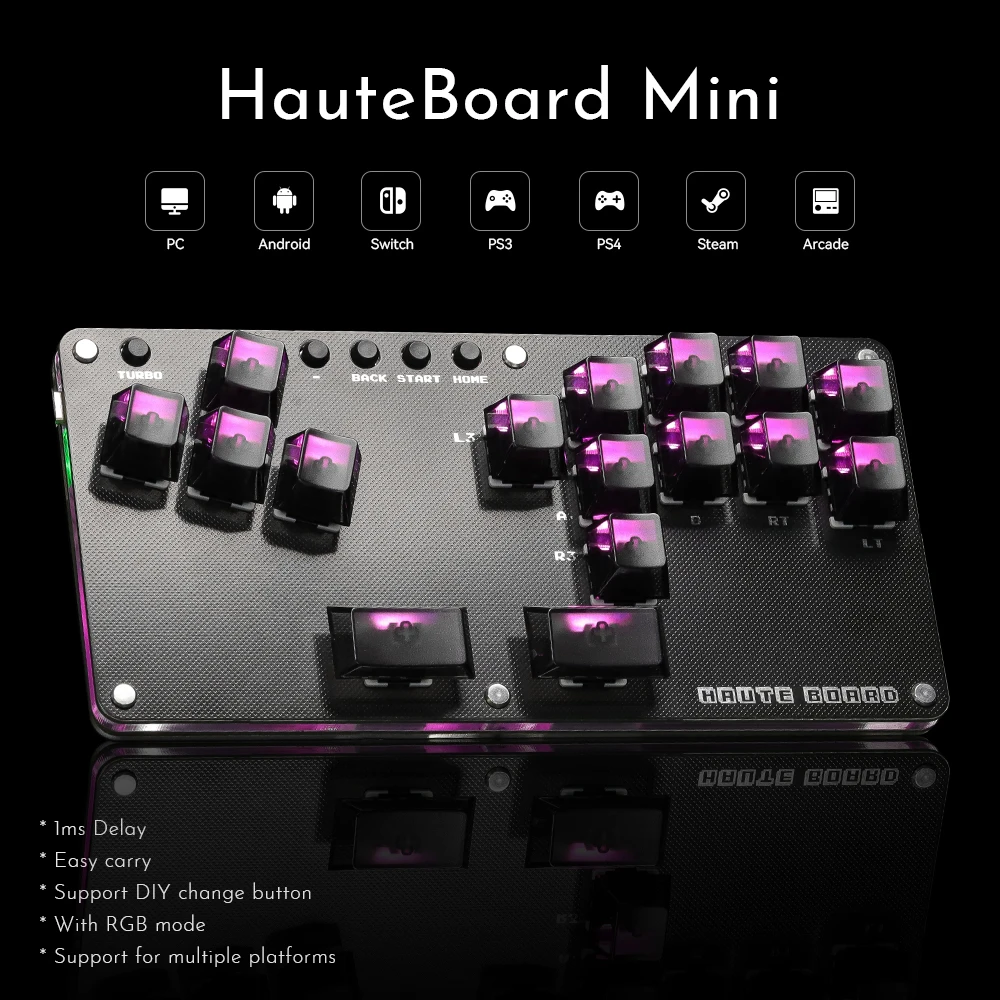
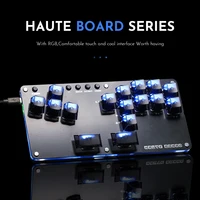
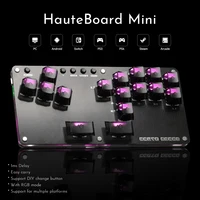
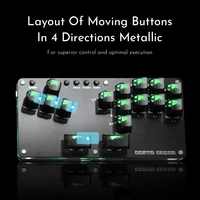
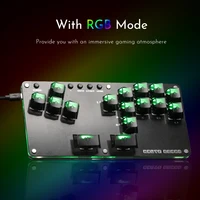
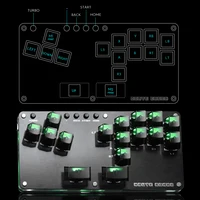
Haute42 Joystick Arcade Hitbox Sticker Leverless Controller Hitbox fightstick For PC /Ps3/ Ps4 /Switch Mini Hitbox Controller
Product Description
Working voltage: 5V
Link method: USB Type-C
Product size: 98mm * 198mm * 11mm
Supported Platforms : pc /ps3/ps4/switch/ Android
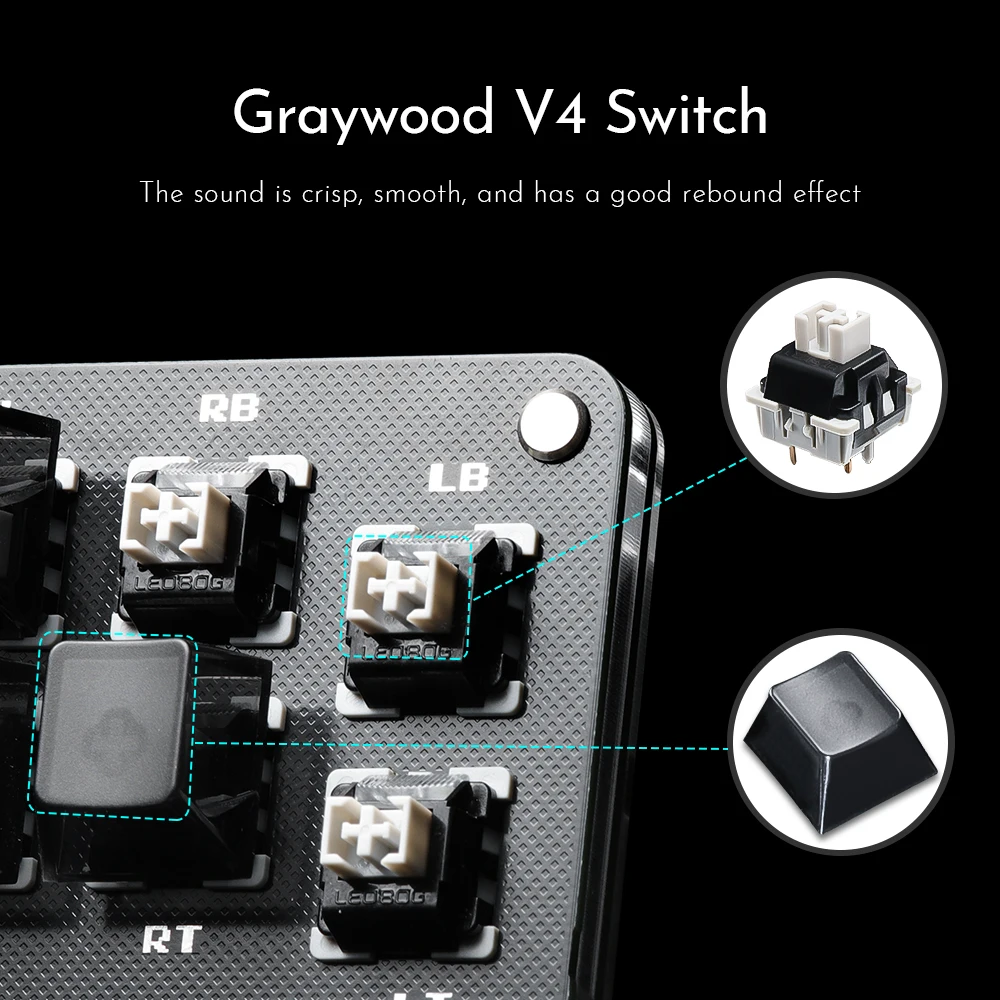
Product Specifications:1 Mini Keyboard,1 Data Cable Type-C,1Keycap Puller,2 additional keycaps1 Grey wood Ssitch
Characteristic:
Dual core ARM Cortex-M0+@ 133MHZ
Supported by dedicated QSPI bus, up to 16MB off chip flash memory
Fully connected AHB crossover switch
Integrated 264kB on-chip SRAM in six independent groups
40nm process node manufacturing, low dynamic power consumption, and low leakage
1ms delay, no frame leakage rate above 95%
Supports firmware updates
more functions and compatibility coming soon
-
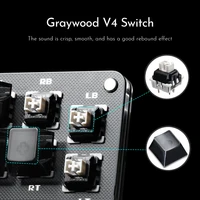
POM stem
-
2-stage spring
-
Initial 30gf min
-
Total Travel 3.6+/-0.3mm
-
Conduction 1.5+/-0.3mm
-
Operating force 40+/-3gf
-
Bottom force 50+/-3gf
Notice:EXT. port is used for extension functions,
please do not connect your game console through this port.
01 Compatibility
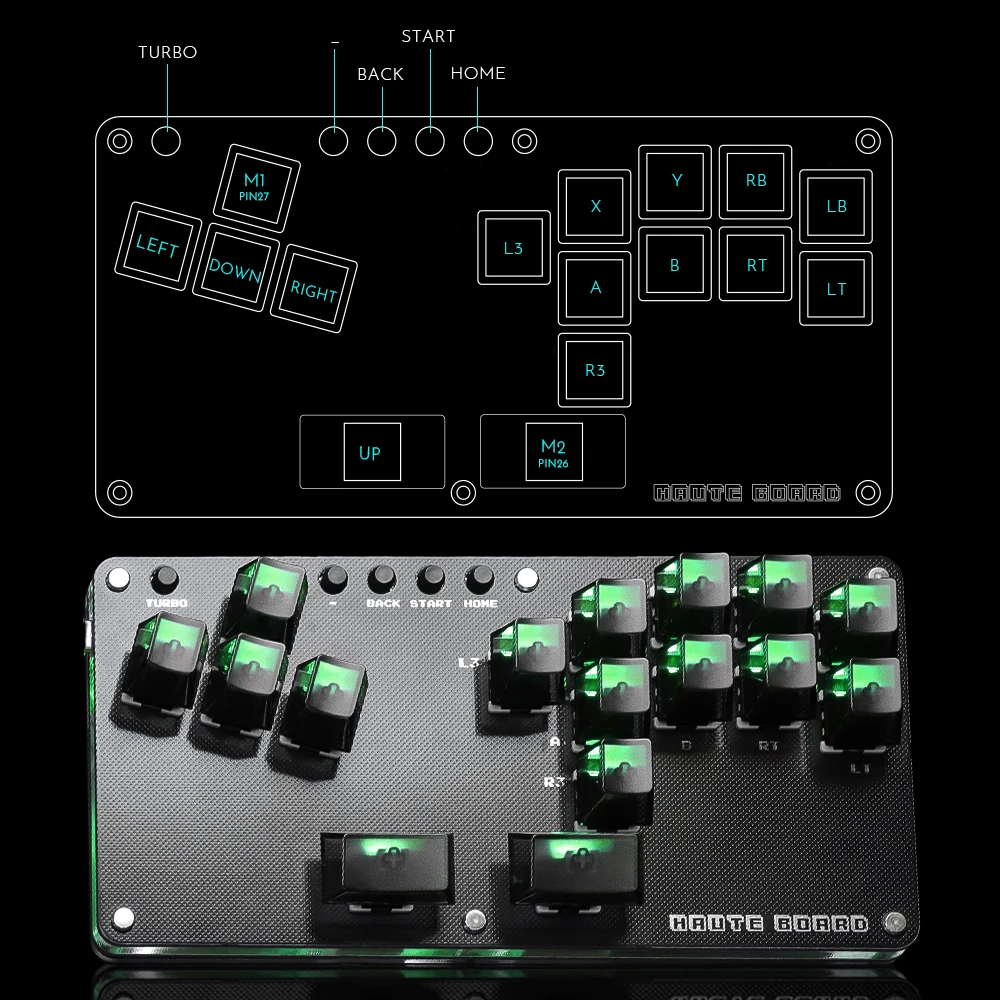
B — Xinput mode (Windows/Steam)
A — SWITCH mode
X — PS3 / Dinput mode (Raspberry Pi / Android)
Y — PS4 mode (Compatible with PS4 games on PS5 console)
RT — KEYBOARD Mode
Input Mode
To change the input mode, hold one of the buttons(as shown above) as
the controller is plugged in.
Tips:
This product defaults to Xinput mode , Input mode is saved across
power cycles.
If there are games that do not compatible the above input modes , you
can enter the Web Configurator to modify them for normal use.
PS4 Mode
This product will be disconnected at 8 minutes after connecting to the
PS4/PS5 console.
You can avoid this 8-Minute Timeout by uploading the verification files
which required for PS4 mode. More details, please check on the official
website:www.haute42.com
D-Pad Modes
You can switch between the 3 modes for the D-Pad while the controller
is in use by pressing one of the following default combinations:
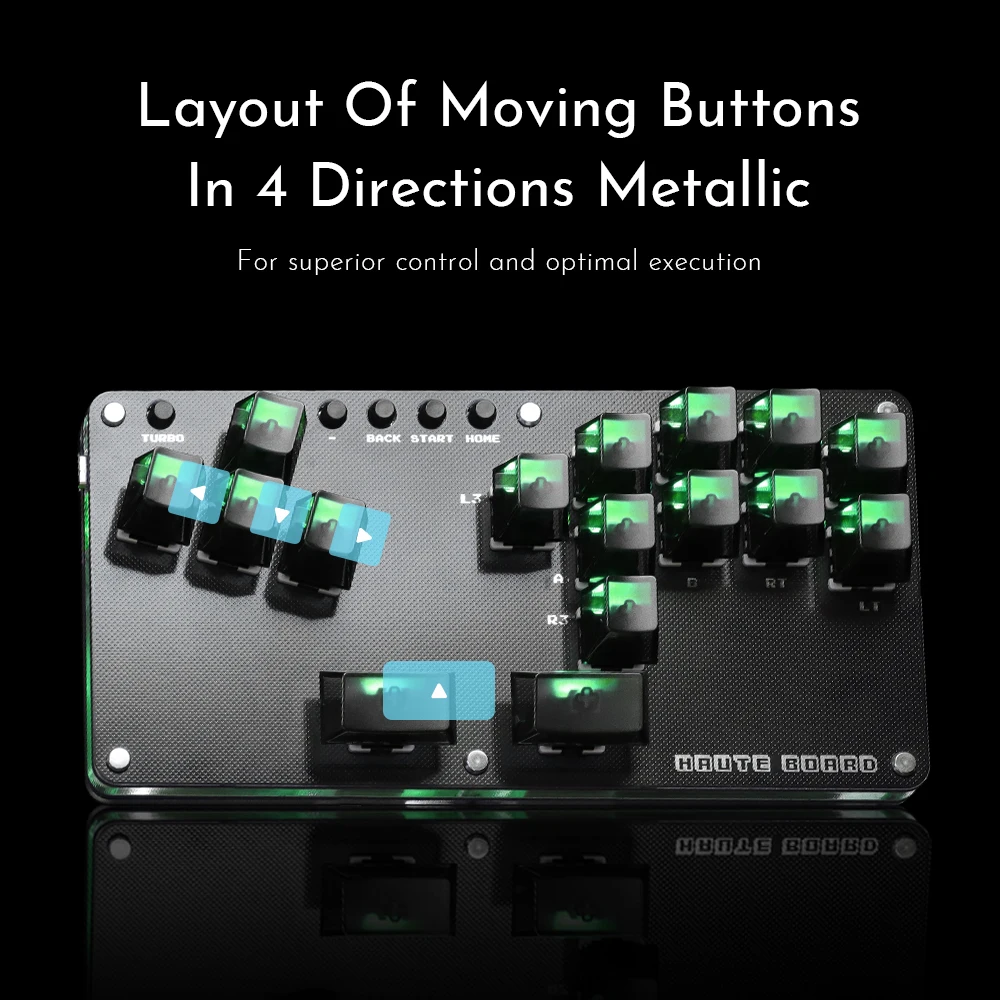
● BACK + START + DOWN = D-Pad
● BACK + START + LEFT= Emulate Left Analog stick
● BACK + START + RIGHT= Emulate Right Analog stick
D-Pad mode is saved across power cycles.
Invert D-Pad Y-axis
A toggle is available to invert the Y-axis input of the D-pad, allowing
some additional input flexibility. The default hotkey to toggle is to press
● HOME + START + RIGHT = Y-axis inersion
This is a temporary hotkey mapping for this feature, so keep an eye on
updated releases for this to change.
SOCD Modes
Simultaneous Opposite Cardinal Direction (SOCD) cleaning will ensure
the controller obeys certain directional input rules when sending inputs
to the computer/console. Users can choose 1 of the 3 SOCD Modes
while the controller is in use by pressing one of the following button
default combinations:
● HOME + START + UP = Up Priority mode
Up + Down = Up, Left + Right = Neutral (Standard stickless behavior).
● HOME + START + DOWN = Neutral mode
Up + Down = Neutral, Left + Right = Neutral
● HOME + START +LEFT =Last Input Priority (Last Win)
Hold Up then hold Down = Down, then release and re-press Up = Up.
Applies to both axes.
The selected SOCD mode is saved across power cycles
TURBO
First Time Setting
1. Enter the web configurator page
2. Configuration > Add-Ons Configuration > Turbo > Enable
3. Type 14 below Turbo Pin, press Save at the bottom of this page,
then reconnect this board to use turbo function.
Turbo Setting
Hold TURBO,then press the button which you need to be set for turbo
function,then this button will be continuous sending while you press
it,to cancel this turbo key,just repeat the privious step.
The turbo key that set will be cleard when power off.
These keys can be set as a Turbo key: A / B / X / Y / LB / RB / LT / RT
For more information, please consult us or refer to the manual or Or visit our website //www.haute42.com/



Reviews
Clear filtersThere are no reviews yet.