
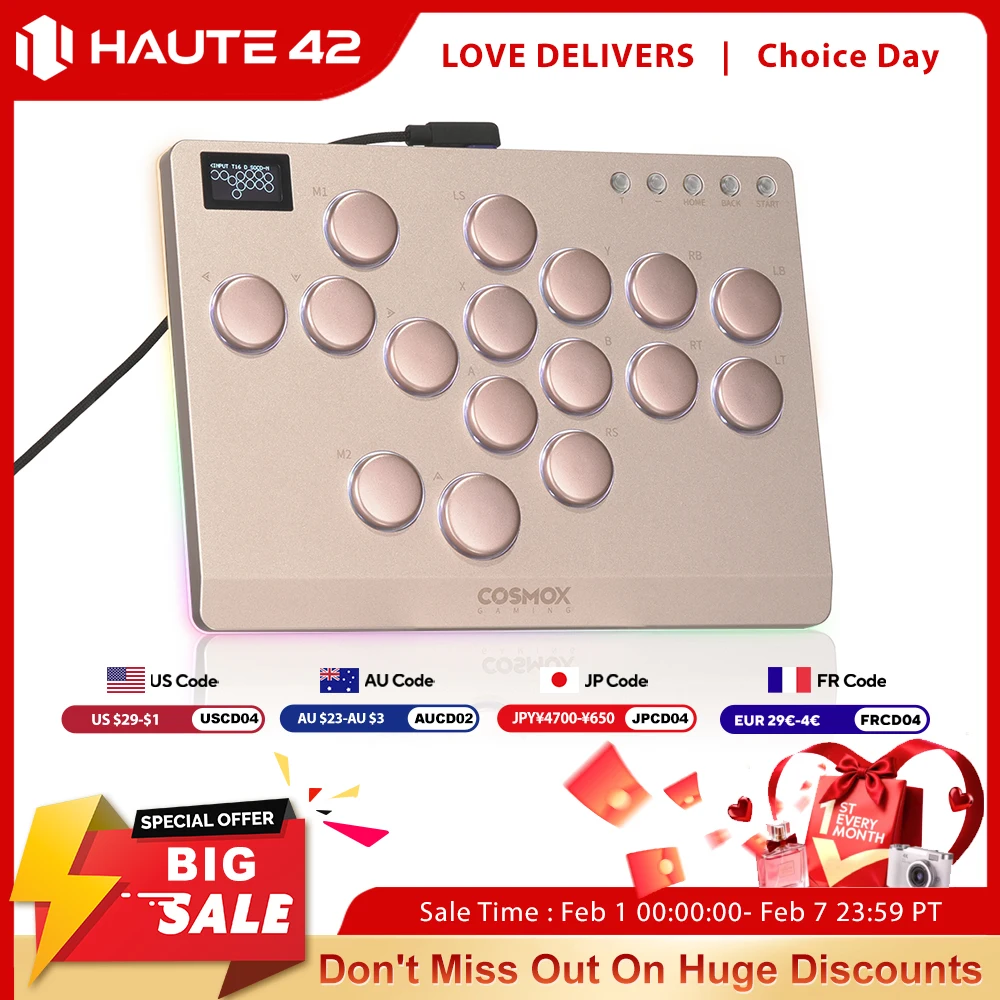
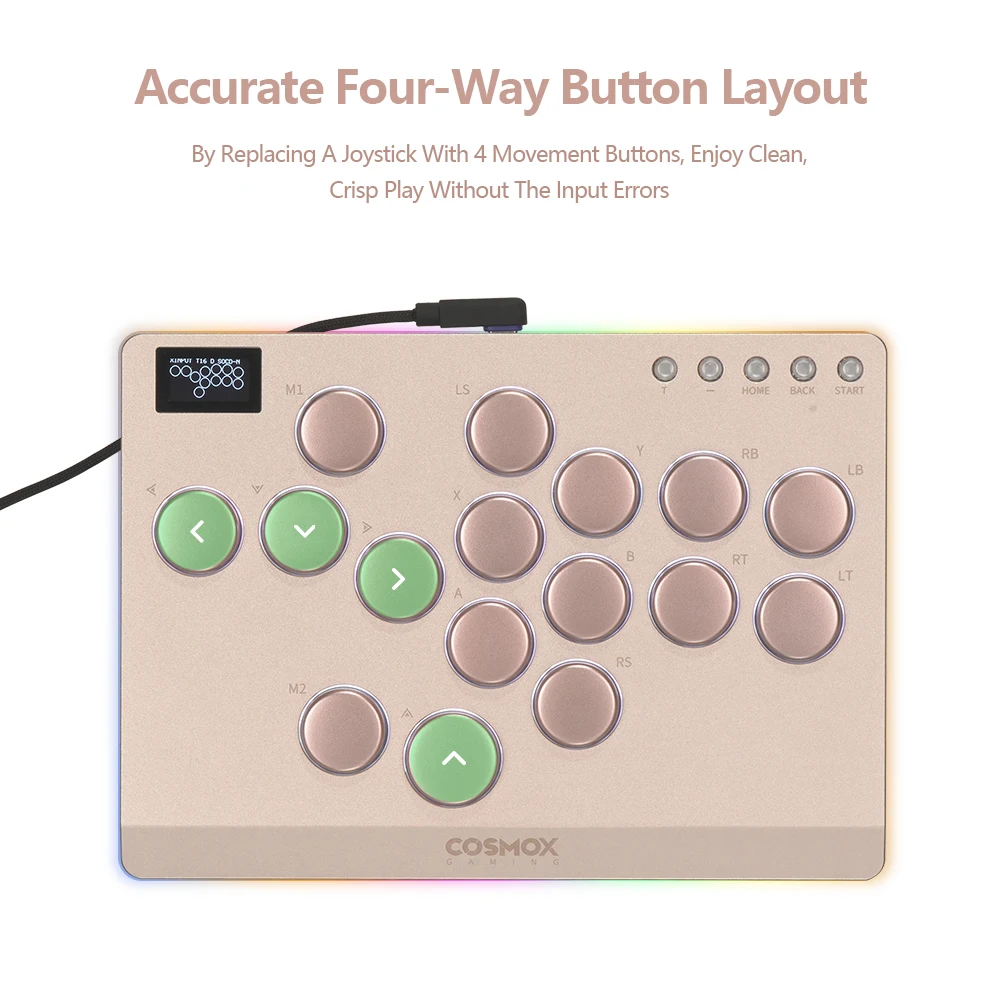





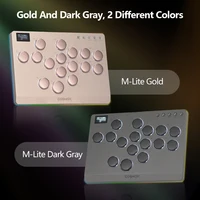

Haute42 Aluminum Alloy Hitbox Leverless Arcade Stick Fighting Game Hitbox Controller For PC/Ps4 /Ps5 Joystick Arcade Controller
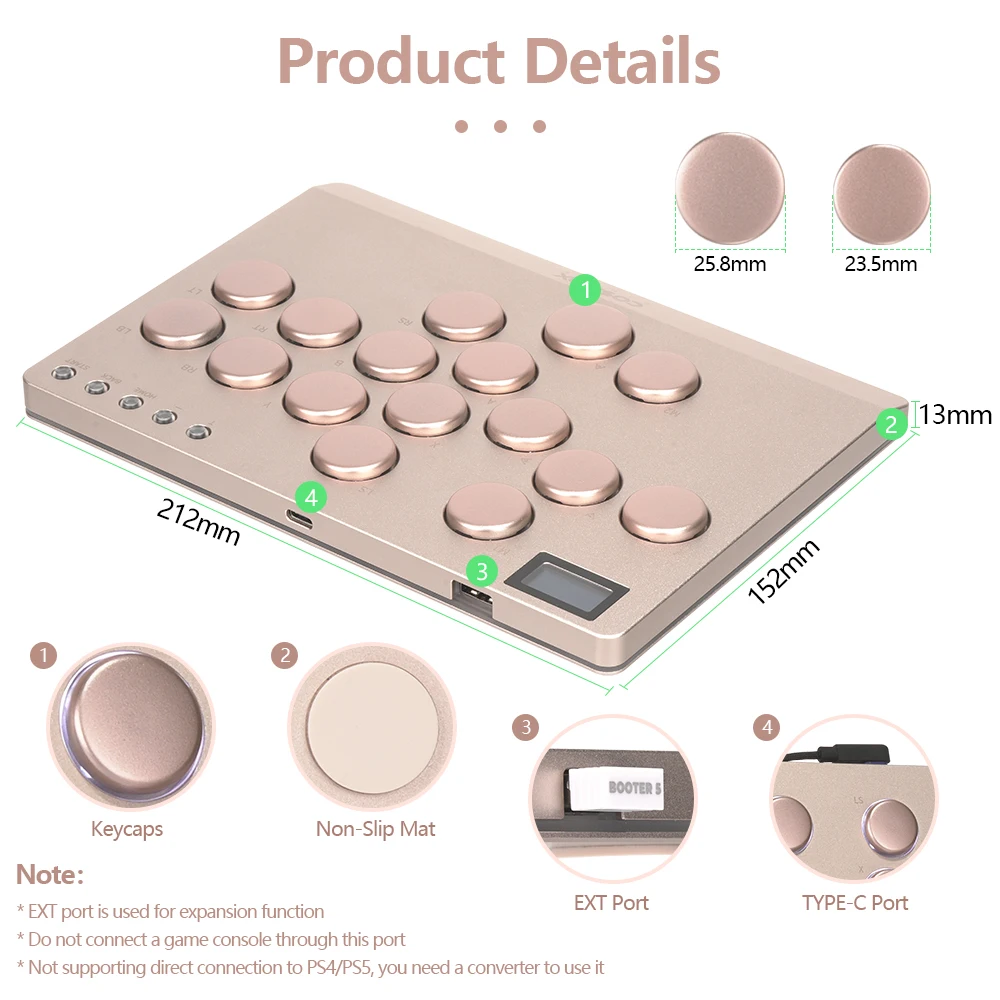
NOTE: If you want to connect to PS4 or PS5, you will need a converter or an dongle. Our store also has converters available for you to purchase together
Product Description
Working voltage: 5V
Link method: USB Type-C
Product size: 212mm * 152mm * 13mm Key cap Size:23.5mm
Supported Platforms : pc /ps5/ps4/switch/ Android/Steam
Product Specifications:1Mini Keyboard,1Data Cable Type-C,1Keycap Puller, 4 anti slip pads
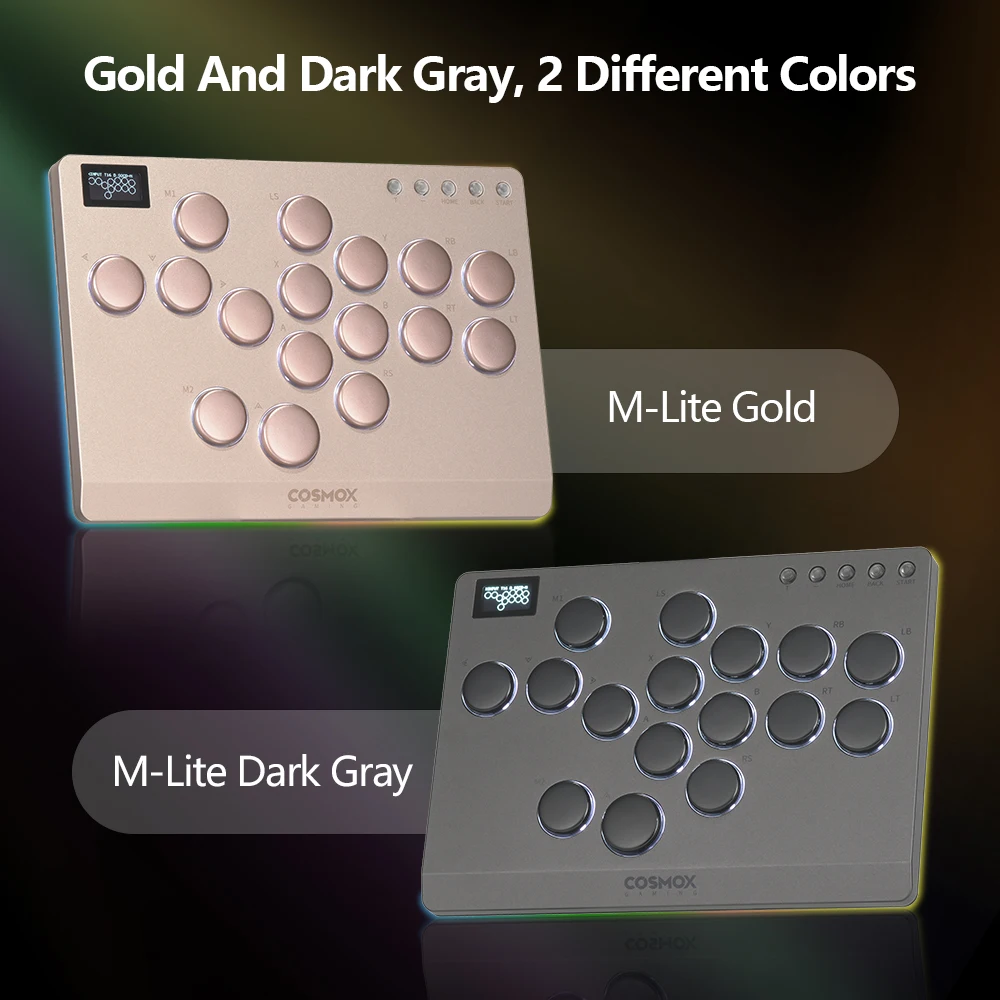
HautePad M- Lite
Ten years of gaming peripheral experience
Carefully crafted portable Hitbox
Take you back to the arcade er
The heart of combat never stops!
This is an all metal hitbox keyboard, Adopting CNC Aluminum Alloy
Anodizing Process ultra-thin, not bulky at all, compact and easy to carry, featuring low axis switches. Featuring a cool appearance with RGB mode. Perfect for fighting games, worth having!
Adopting a cost-effective combat chip, the Raspberry Pi RP2024 main control chip
Characteristic:
Dual core ARM Cortex-M0+@ 133MHZ
Supported by dedicated QSPI bus, up to 16MB off chip flash memory
Fully connected AHB crossover switch
Integrated 264kB on-chip SRAM in six independent groups
40nm process node manufacturing, low dynamic power consumption, and low leakage
1ms delay, no frame leakage rate above 95%
Supports firmware updates
more functions and compatibility coming soon
01 Compatibility
B — Xinput mode (Windows/Steam)
A — SWITCH mode
X — PS3 / Dinput mode (Raspberry Pi / Android)
Y — PS4 mode (Compatible with PS4 games on PS5 console)
RT — KEYBOARD mode
Input Mode
To change the input mode, hold one of the buttons(as shown above) as the controller is plugged in.
Tips:
This product defaults to Xinput mode,Input mode is saved across power cycles.
If there are games that do not compatible the above input modes , you can enter the Web Configurator to modify them for normal use.
Web Configurator
This product contains a built-in web-based configuration application which can be started up by holding START when plugging your controller into a PC. Then access //192.168.7.1 in a web browser to begin configuration.
TURBO
Hold TURBO,then press the button which you need to be set for turbo function,then this button will be continuous sending while you press it,to cancel this turbo key,just repeat the privious step
The turbo key that set will be cleard when power off.
These keys can be set as a Turbo key: A / B / X / Y / LB / RB / LT / RT
04 RGB LED Setting
●BACK + START + X Next Animation
●BACK + START + A Previous Animation
●BACK + START + Y Brightness Up
●BACK + START + B Brightness Down
●BACK + START + RB LED Parameter Up
●BACK + START + RT LED Parameter Down
●BACK + START + LB Pressed Parameter Up
●BACK + START + LT Pressed Parameter Down


Reviews
Clear filtersThere are no reviews yet.