
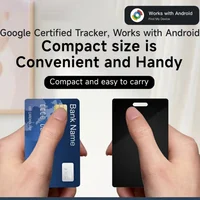

Notice before purchase :
Make sure the Google LCC offer services (and updates) in the area you want to use the tracker ;
These countries of below has been limited by Google LCC : China ,North Korea, Iran ,Cuba ,Crimea ,Syria ,Russia, Central Asian countries ,Pakistan ,and so on .
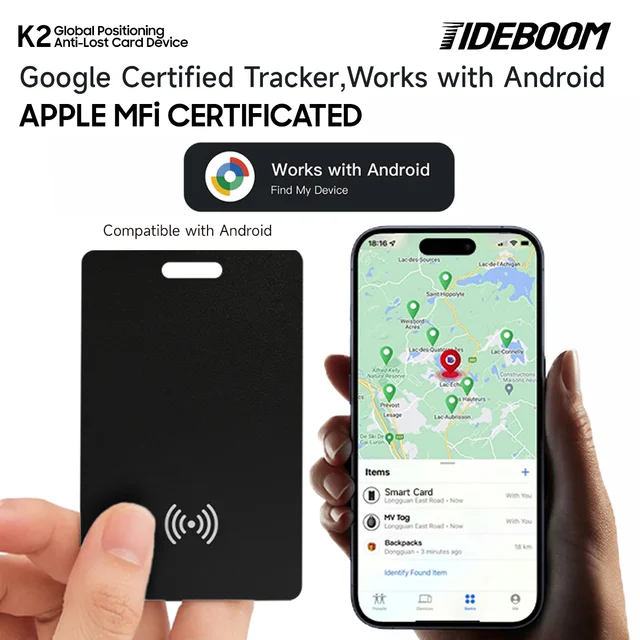
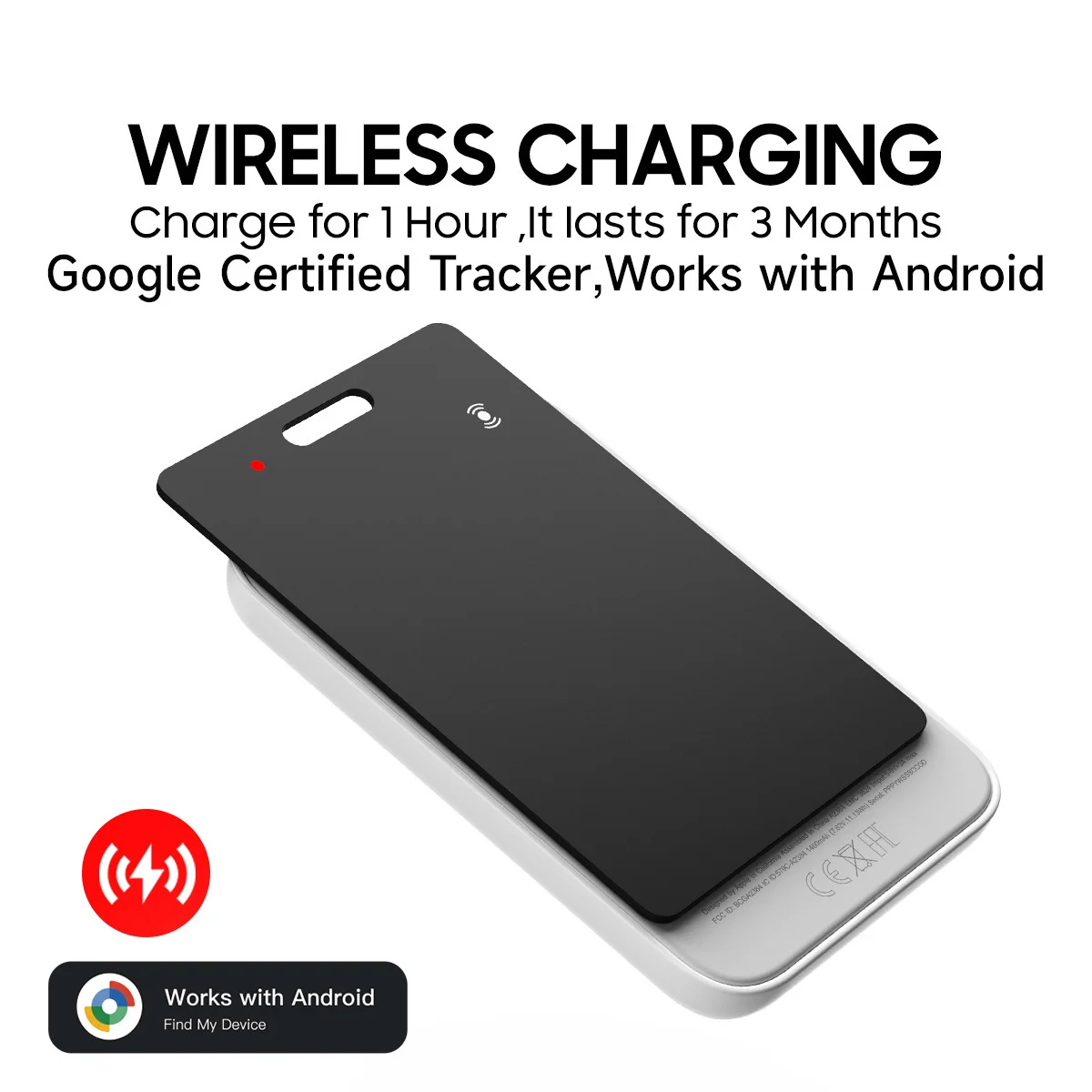
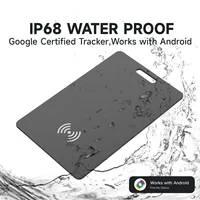
Key Features of the Smart tag for Android Goolge Find My Device App (Upgraded to Google ‘S Find Hub)
Google certification: Official recognition of quality and compatibility
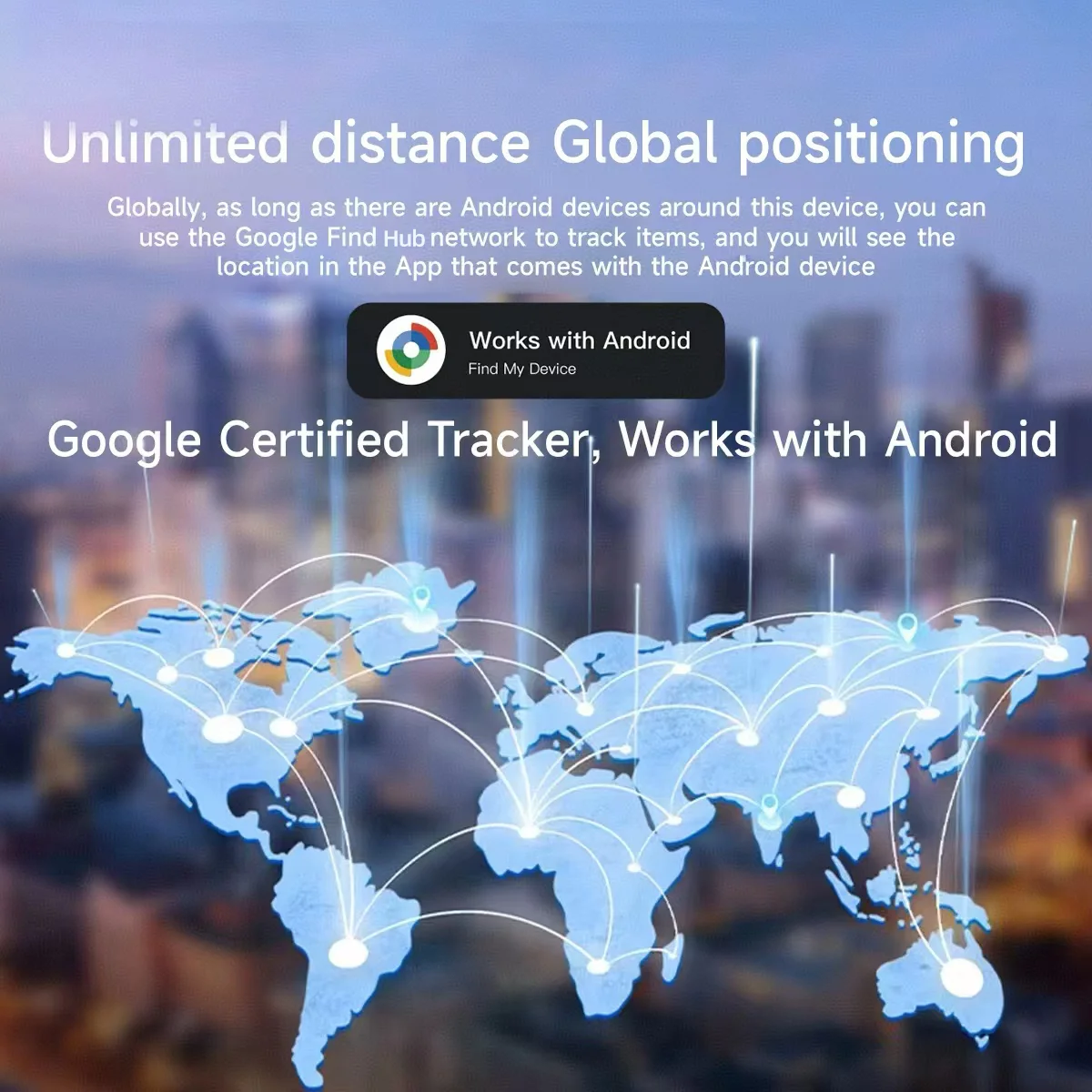
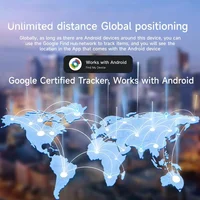
Global tracking: Works worldwide with comprehensive coverage
Privacy-focused: Built-in protection for user data
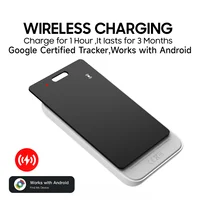
Convenient power: Long battery life with replaceable battery
Smart integration: Works with Google’s Find My network,designed to work with most Andriod cellphones such as Xiaomi and Samsung cellphones
Reliable Protection, Anytime, Anywhere
Never lose track of what matters. Our Android-compatible anti-loss devices keep your essentials secure with seamless smartphone connectivity. Just open the app to instantly locate missing items—effortless peace of mind, wherever you go.
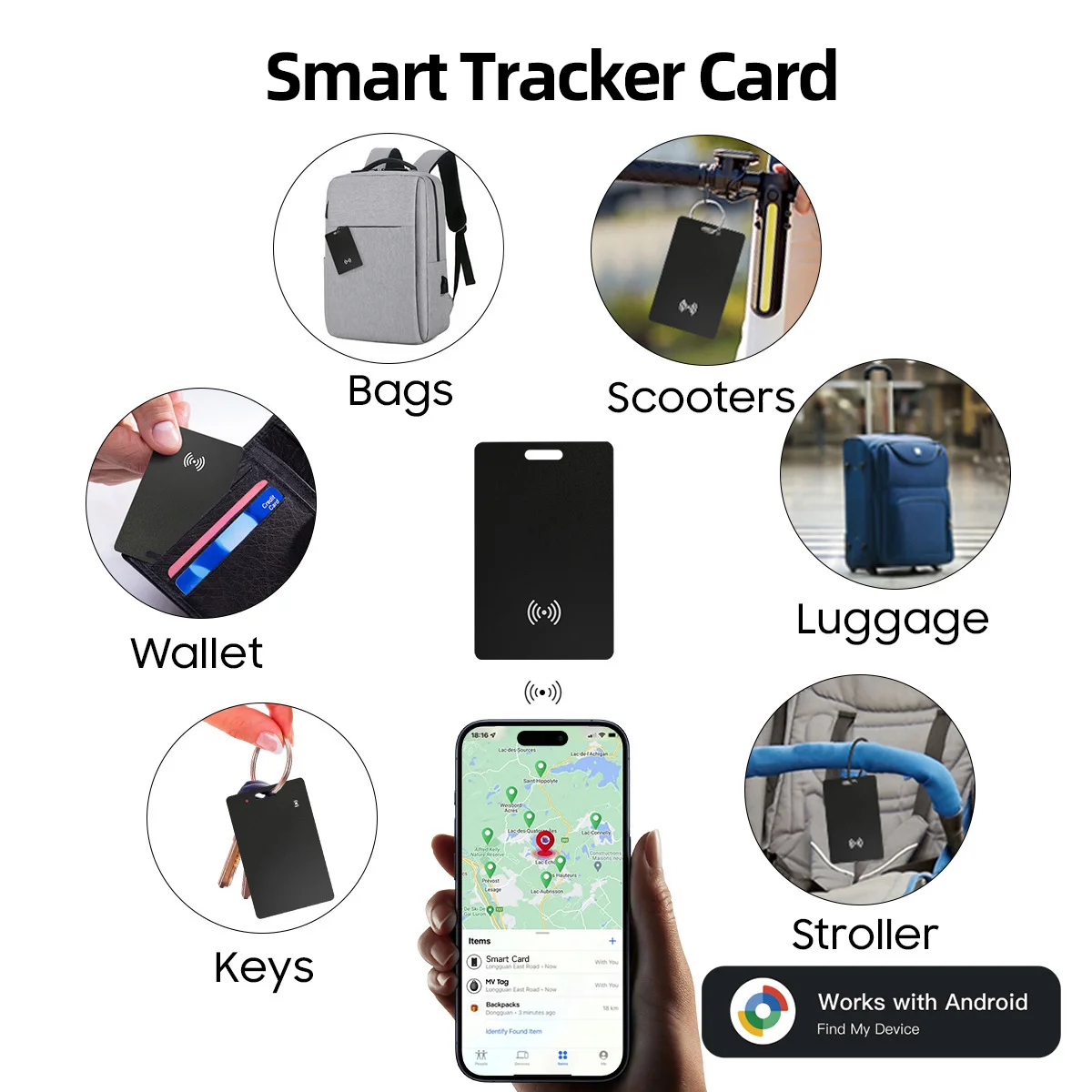
Never Lose What’s Important
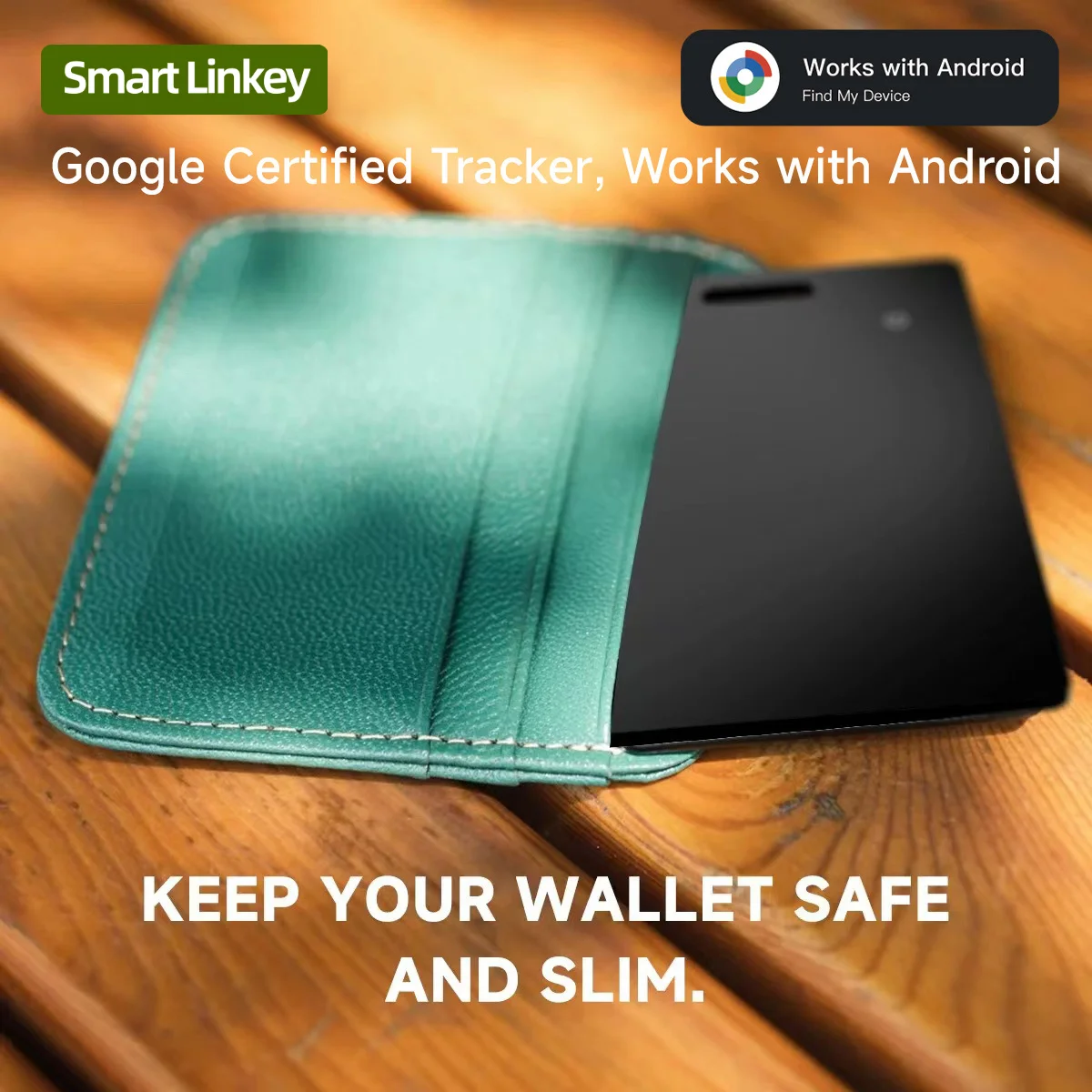
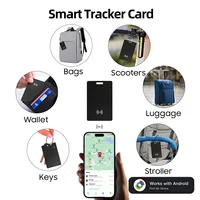
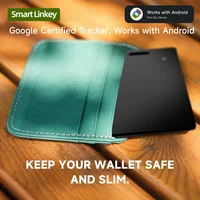
Forgot your wallet? Misplaced your keys? Stay worry-free with our smart anti-loss tracker. Quickly find your valuables using your Android device and keep them protected—24/7.
Track Everything, Everywhere
Lost items are now a thing of the past. Our advanced Android anti-loss tag helps you monitor all your valuables, even when they’re out of sight. With global tracking, it’s the perfect travel companion—so you can explore with confidence.
Connection steps:
0 seconds to 1 minute 23 seconds: First, enable scanning for nearby devices in your phone settings. Next, turn on the network, Bluetooth, and location, then log in to the Find Hub APP. Press the button on the card and release it when you hear a beep. After a moment, your phone will display the connection interface, then follow the steps to complete the connection.
If that doesn’t work, you can also follow the procedure below:
Resetting the card and reconnecting: 1:54-2:49. Quickly press the button 4 times, then press and hold the 5th time until you hear a beep to complete the reset. The connection interface will then appear, and you can reconnect by following the steps above.[eos]
2.For more troubleshooting, see the end of the article or the Knowledge Base
Common Fixes:
Missed Pop-Up? The tracker may have sent a pairing request that was dismissed.
Try a Reset:
Quickly press the button 5 times, press until you hear a beep.
The device will reset and should reappear in the app.

Reviews
Clear filtersThere are no reviews yet.